Payment Management
Overview
Payment Management tracks all payments received across the system — online and offline. It provides a complete payment history, offline payment recording, and detailed payment views with receipts. Payments are linked to bills and update bill statuses automatically.
Navigate to: Sidebar → Payment Management
Payment History
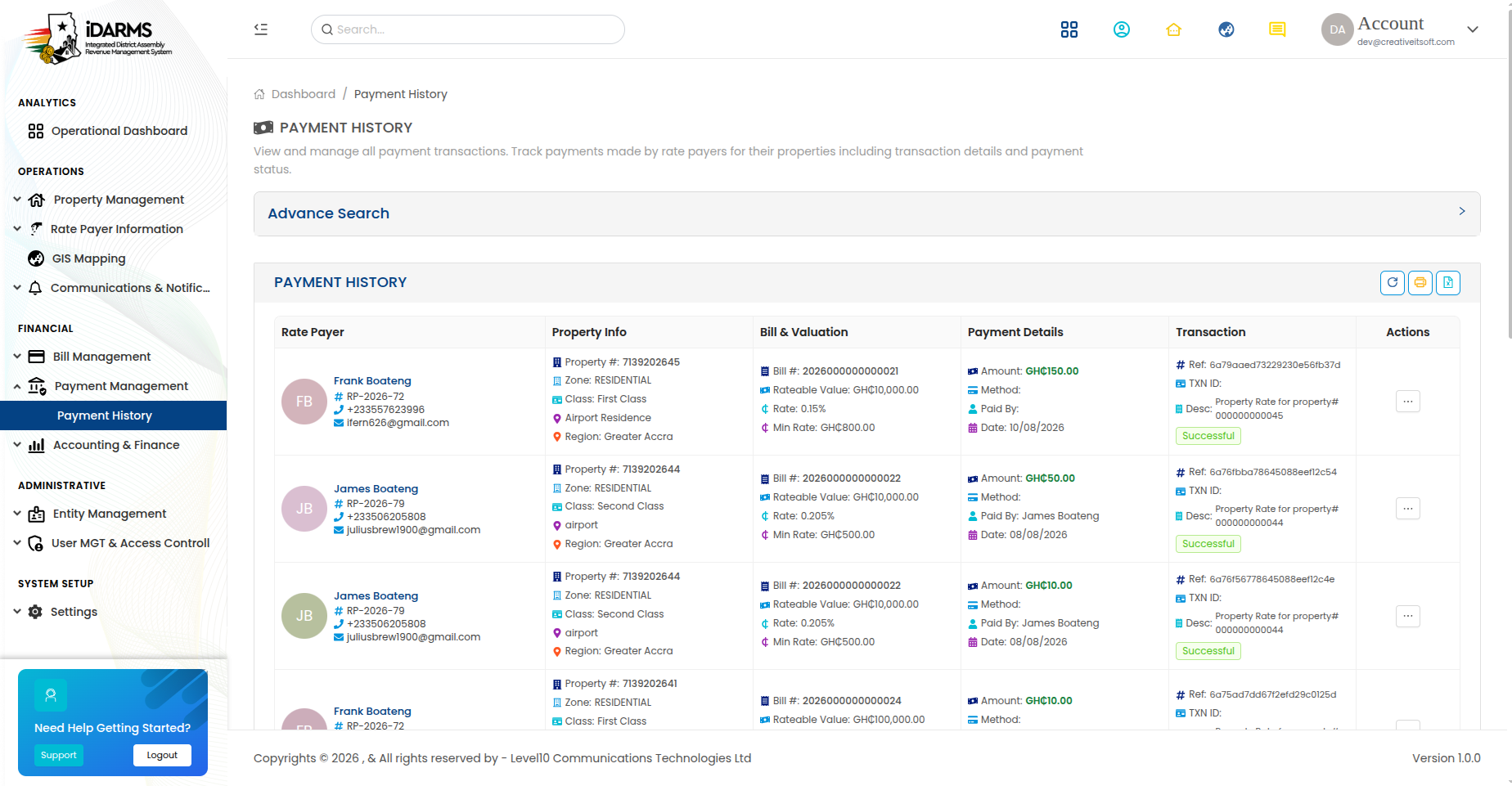
Navigate to: /paymentmanagement/paymenthistory
| Element | Description |
|---|---|
| Search bar | Search by bill number, reference, property ID, or rate payer name |
| Filter tabs | All (N), Success (N), Failed (N), Pending (N) — each with live count |
| Export button | Export payment history to Excel |
| Payment card | Shows payment details and status |
Payment Card
| Field | Description |
|---|---|
| Payment ID | System-generated unique identifier |
| Bill Number | Linked bill identifier (e.g. #2026000000000022) |
| Rate Payer | Name of the payer |
| Property ID | Linked property identifier |
| Amount | Payment amount in GHS/GH₵ |
| Payment Method | Online (card, mobile money, bank transfer) or Offline (cash, cheque) |
| Status badge | Success, Failed, or Pending |
| Date & Time | When the payment was made |
| Reference | Payment gateway reference number |
Filter Tabs
| Tab | Shows |
|---|---|
| All | All payments regardless of status |
| Success | Payments completed successfully |
| Failed | Payments that failed (gateway error, insufficient funds, etc.) |
| Pending | Payments awaiting confirmation or processing |
Things to check
- Tab counts match the actual number of payments
- Search works across bill number, reference, property ID, and rate payer name
- Payments are sorted by most recent first
- Multiple payments against the same bill each appear as distinct entries
- Failed payments show the failure reason
Payment Details
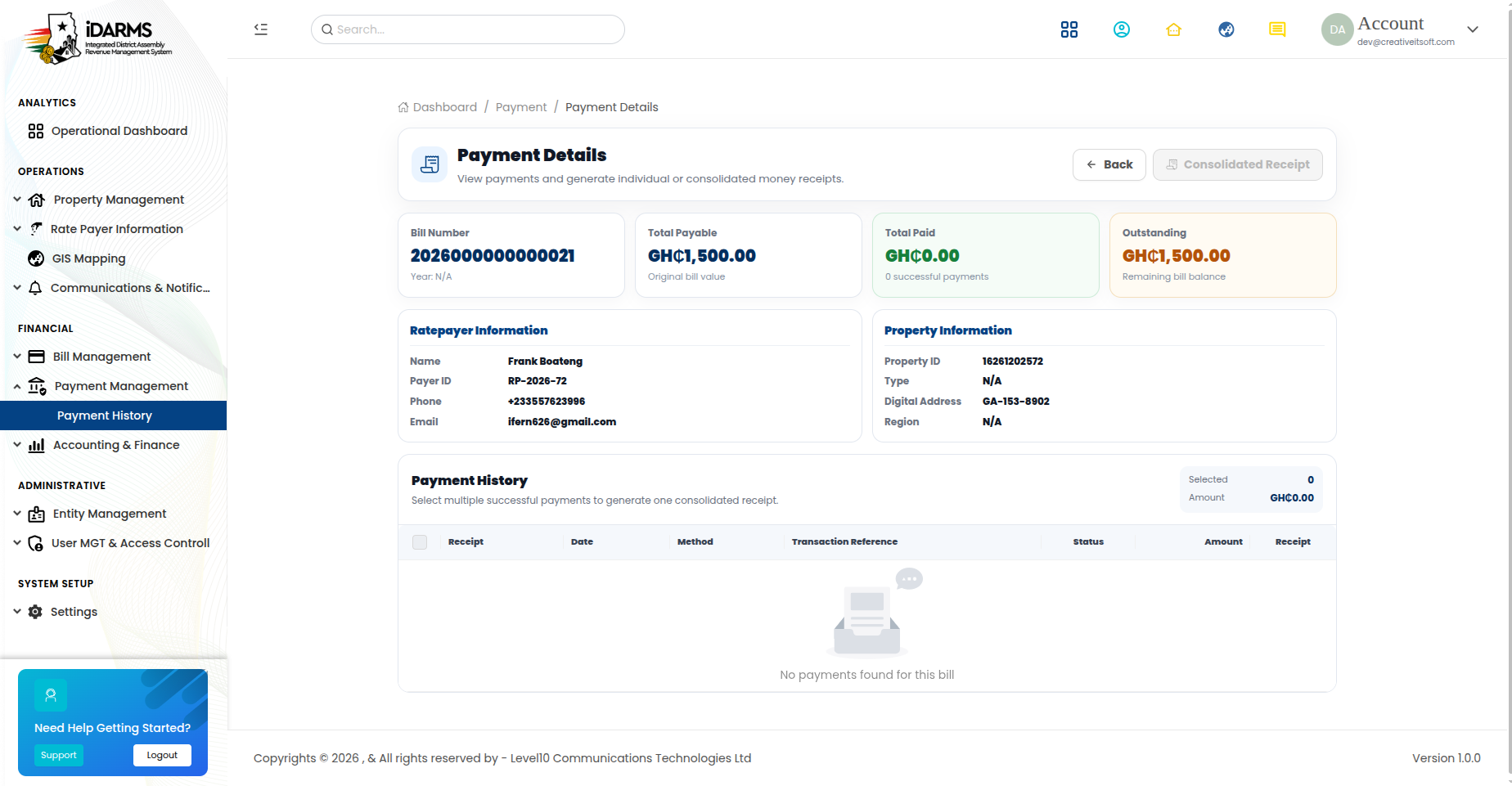
Navigate to: Sidebar → Payment Management → Payment History → View Details
Comprehensive view of a single payment.
Payment Information
| Field | Description |
|---|---|
| Payment ID | System-generated unique identifier |
| Amount | Payment amount in GHS/GH₵ |
| Bill Number | Linked bill identifier |
| Reference No | Payment gateway reference |
| Rate Payer | Name of the payer |
| Payment Method | Online or Offline method |
| Paid On | Date and time of payment |
| Status | Success, Failed, or Pending |
| Description | Payment description or notes |
Linked Bill Information
| Field | Description |
|---|---|
| Bill Number | Unique bill identifier |
| Bill Period | Billing period |
| Billed Amount | Total amount due |
| Paid Amount | Total amount paid (including this payment) |
| Outstanding | Remaining balance after this payment |
Rate Payer Information
| Field | Description |
|---|---|
| Name | Rate payer's name |
| Type | Individual or Organisation |
| Contact | Phone number and email |
| Rate Payer ID | Unique identifier |
Actions
| Action | Description |
|---|---|
| View / Print Receipt | Opens the payment receipt for printing |
| Share Link | Shares the receipt link via email or messaging |
| Download Receipt | Downloads the receipt as PDF |
Things to check
- Payment details match the original transaction
- Bill outstanding is updated correctly after this payment
- Receipt is identical whether accessed from Payment Details or immediately after payment
- Share Link copies a valid, publicly accessible URL
- Download Receipt generates a correct PDF
Offline Payment
Navigate to: /paymentmanagement/offlinepayment
Record payments made offline (cash, cheque, bank transfer, mobile money agent).
Offline Payment Form
| Field | Required | Description |
|---|---|---|
| Rate Payer | Yes | Search and select the rate payer making the payment |
| Property | Yes | Select the property (filtered by rate payer) |
| Bill | Yes | Select the bill to pay (filtered by property, showing outstanding bills) |
| Amount | Yes | Payment amount in GHS/GH₵ (cannot exceed outstanding balance) |
| Payment Method | Yes | Cash, Cheque, Bank Transfer, Mobile Money Agent |
| Reference Number | Conditional | Required for cheque, bank transfer, and mobile money |
| Cheque Number | Conditional | Required if payment method is Cheque |
| Bank Name | Conditional | Required for cheque and bank transfer |
| Transaction Date | Yes | Date the payment was received |
| Notes | No | Additional notes about the payment |
| Supporting Document | No | Upload proof of payment (receipt, deposit slip, etc.) |
Offline Payment Flow
Navigate to Offline Payment
        ↓
Search and Select Rate Payer
        ↓
Select Property (filtered by rate payer)
        ↓
Select Bill (filtered by property, outstanding only)
        ↓
Enter Payment Details (amount, method, reference)
        ↓
Upload Supporting Document (optional)
        ↓
SUBMIT
        ↓
Payment Recorded → Bill Status Updated → Receipt Generated
Things to check
- Rate Payer search returns matching results as the user types
- Property dropdown only shows properties linked to the selected rate payer
- Bill dropdown only shows outstanding bills for the selected property
- Amount cannot exceed the bill's outstanding balance
- Required fields for each payment method are enforced
- Supporting document upload accepts JPG, PNG, PDF (max 10MB)
- After submission, the bill status updates (e.g. Partially Paid → Paid)
- The offline payment appears in the Payment History
Public Payment Receipt
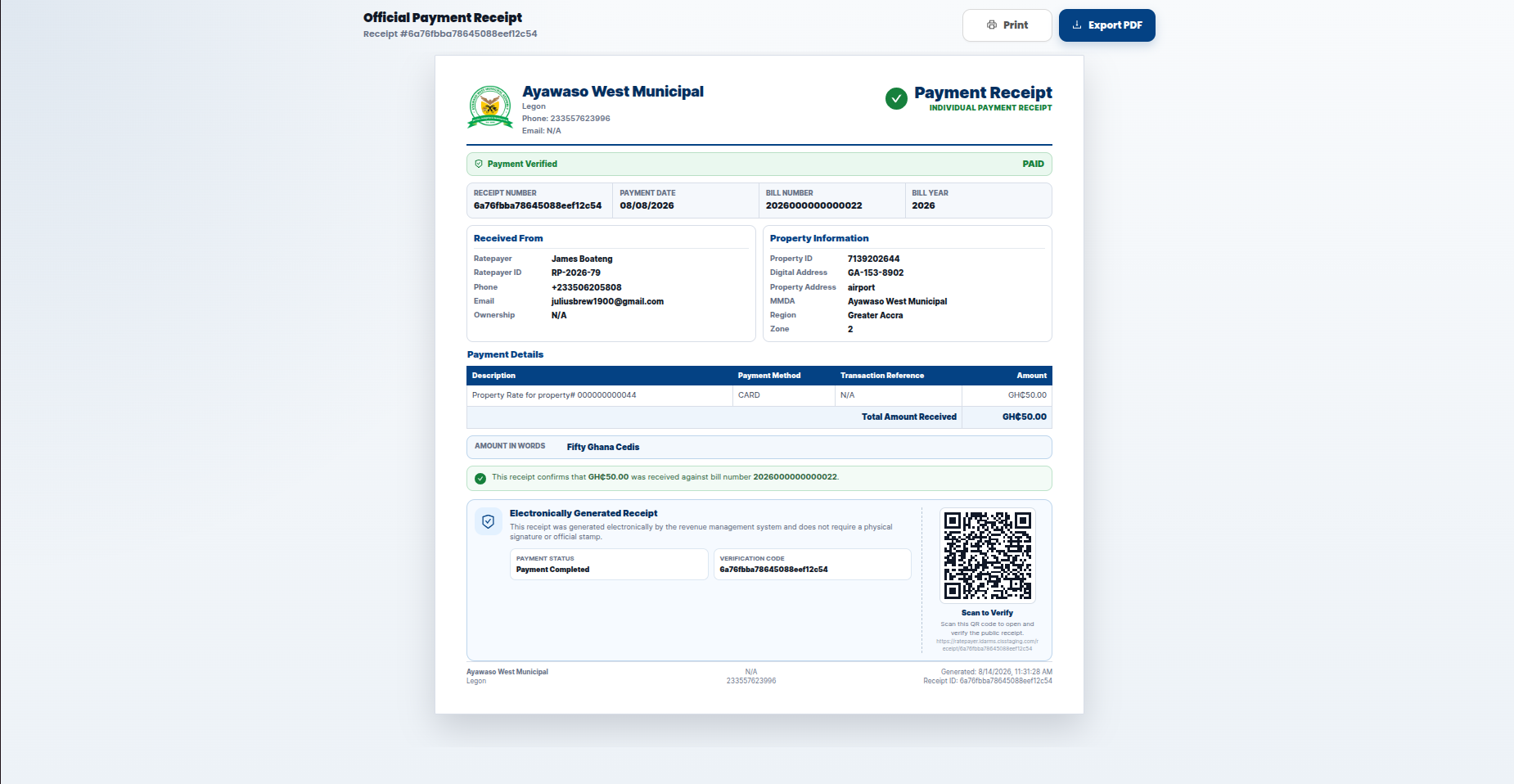
Navigate to: /receipt/:id (public — no authentication required)
A publicly accessible payment receipt page that can be shared with rate payers and printed for record-keeping.
Receipt Header
| Field | Description |
|---|---|
| MMDA Name | Metropolitan/Municipal/District Assembly |
| iDARMS Logo | System branding |
| Receipt Title | "Payment Receipt" |
Receipt Details
| Field | Description |
|---|---|
| Receipt Number | Unique receipt identifier |
| Bill Number | Linked bill identifier |
| Rate Payer | Name of the payer |
| Rate Payer ID | Unique identifier |
| Property ID | Linked property identifier |
| Property Address | Physical address of the property |
| Payment Amount | Amount paid in GHS/GH₵ |
| Payment Method | Online, Offline, etc. |
| Payment Date | When the payment was made |
| Transaction Reference | Payment gateway reference |
| MMDA | Assembly name |
Receipt Footer
| Element | Description |
|---|---|
| QR Code | Scannable verification QR code |
| Print button | Print the receipt |
| Download button | Download as PDF |
| "Powered by iDARMS" | System attribution |
Things to check
- Receipt is accessible without login (public URL)
- QR code is scannable and links to the receipt verification
- All amounts are accurate and formatted in GHS/GH₵
- Receipt matches the payment record in the system
- Print generates a clean, formatted receipt
- Download generates a valid PDF file
- Receipt URL is valid for sharing via email or messaging
Payment Methods
| Method | Type | Description |
|---|---|---|
| Card | Online | Credit/debit card payment via payment gateway |
| Mobile Money | Online | MTN Mobile Money, Vodafone Cash, AirtelTigo Money |
| Bank Transfer | Online/Offline | Direct bank transfer |
| Cash | Offline | Cash payment collected by agent or at office |
| Cheque | Offline | Cheque payment with cheque number recorded |
| Mobile Money Agent | Offline | Payment via mobile money agent (USSD-based) |
Things to check
- Online payments trigger real-time bill status updates
- Offline payments are recorded manually and update bill status on submission
- Payment method validation is enforced (e.g. cheque number required for cheques)
- All payment methods appear in the payment history
- Payment receipts correctly show the payment method used
Complete Payment Workflow
Bill Issued to Rate Payer
        ↓
Rate Payer Makes Payment (Online or Offline)
        ↓
Online → Payment Gateway Processes → Success/Failure
Offline → Admin Records Payment → Confirmed
        ↓
Payment Recorded in System
        ↓
Bill Status Updated (Paid / Partially Paid)
        ↓
Receipt Generated (accessible via /receipt/:id)
        ↓
Payment History Updated
Things to check
- Bill status updates correctly for all payment scenarios:
- Full payment →
Paid - Partial payment →
Partially Paid - No payment → status unchanged
- Multiple payments against the same bill are tracked separately
- Payment history shows all payments in chronological order
- Receipts are generated for every successful payment
- Failed payments do not update bill status
- Payment data is consistent across all views (history, details, bill details)